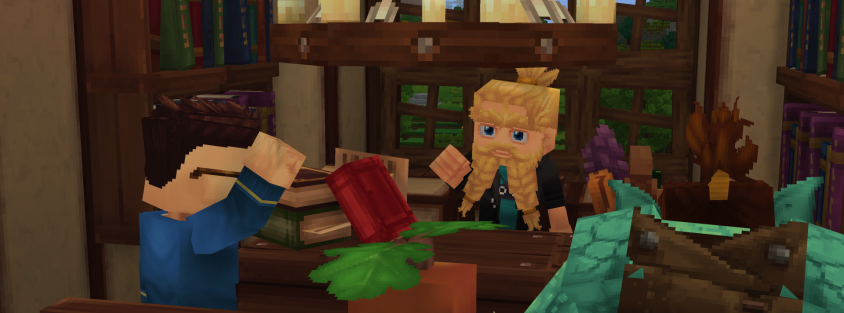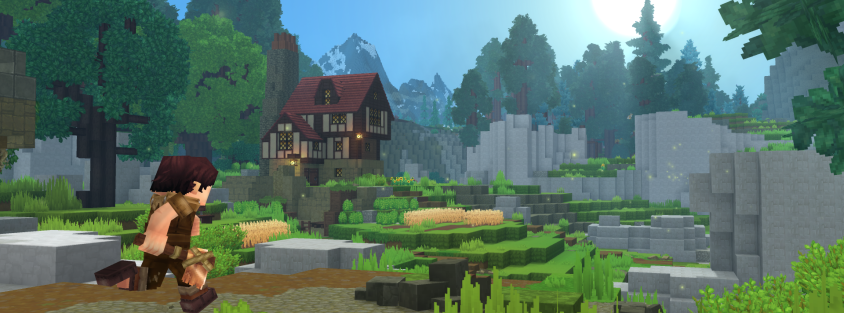
Since Hytale's release into early access, the gaming community has been actively creating custom content that can completely transform the gameplay experience. Modifications allow players to add unique mechanics, change visual styles and expand game capabilities, making every adventure unique.
How to Find and Install Mods for Hytale: Complete Guide
Published: Jan 19, 2026
3 views
4 min read
Learn where to find Hytale mods, how to install them correctly and activate them. Detailed instructions for working with CurseForge and manual mod installation.
Table of Contents
Introduction to Hytale Modifications
Where to Find Quality Hytale Mods
The built-in mod download system in Hytale is still in development, but trusted platforms for finding user content are already available. The international leader is CurseForge - this is a link to a popular modding platform, well known to fans of block-based games. It hosts thousands of projects: from simple interface improvements to major gameplay overhauls.
For Russian-speaking players, specialized mod catalogs serve as a convenient alternative. These platforms regularly publish fresh mods and maps with detailed descriptions in Russian. The installation process for content from these resources is identical to international platforms, but searching and understanding descriptions is significantly simplified.
Types of Modification Files
When working with custom content, it's important to distinguish between file types, as they have different purposes and installation methods.
ZIP archives usually contain resource packs or data packs. These files are safe and handle visual or text changes without affecting the game's program code.
JAR files are full-fledged game modifications with executable code. Such plugins can add new mechanics, items or systems to the game.
It's recommended to download content only from trusted platforms with moderation systems. Always read the mod description before installation and check for dependencies - some modifications require installing additional libraries for proper operation.
Installing Mods via CurseForge App
The easiest way to install modifications for beginners is using the official CurseForge App client. After installation, the application automatically finds the installed copy of Hytale on your computer. If this doesn't happen, you can manually specify the game path through the add game menu.
In the program interface, find the desired project, open the browse tab and click the install button next to the mod you like. The application will automatically download the necessary files and place them in the correct directories. Launching the game with installed mods is done directly from the client interface.
Manual Installation of Modifications
For users who prefer full control over files, manual installation is suitable. This method requires knowledge of the game's folder structure.
Open the Hytale launcher and go to settings through the gear icon. Select the option to open the game's root directory. In the opened explorer window, go to the UserData folder, then find or create the Mods folder. Simply drag the downloaded mod files into this folder. Game restart is not required - new files are automatically picked up on the next launch.
Activating Mods in Game Menu
Having files in the folder doesn't mean they're automatically enabled. Mod management happens directly in the game interface.
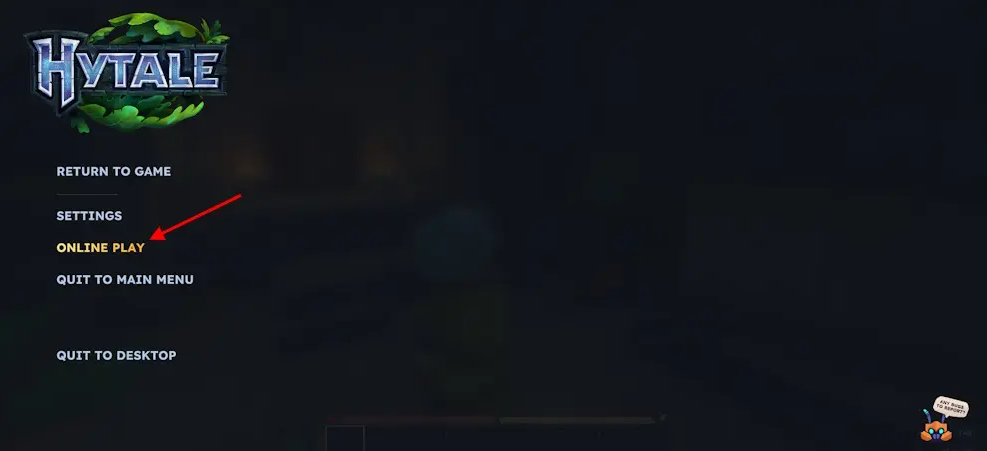
When creating a new world, in the generation settings window, open the modifications section and check the desired add-ons. For existing worlds, select the save in the list, open settings and check the necessary mods, then save the changes.
Some modifications, such as those displaying additional item information, can be safely activated on existing saves without risk of conflicts or data loss.
Installing Custom Maps and Worlds
The process of adding custom maps differs from mod installation, although it happens in the same root directory. Open the UserData folder through launcher settings and find the Saves folder instead of Mods.
The downloaded map archive must be extracted - place not the archive, but the extracted folder with world files into the Saves folder. After proper placement, the new world will appear in the standard save list in the main game menu.
An interesting feature of Hytale is the ability to embed modifications directly into maps. Authors can distribute their creations immediately with the necessary set of game mechanics, which saves players from having to search for and install add-ons separately.